 INCISOR®
The short version
The Incisor® Slot Template is a complete, working slot game that you can open from the Project Gallery inside Incisor® and build your own game on. It's also a good example of FlowControllers in action, so in this article we'll be examining how the Slot Template uses them. For another example, open Botched Together, a demo game that's also in the Project Gallery.
The Slot Template runs its whole game on one FlowController, MainGameFlow, with five FlowStates. At any moment exactly one of them is current:
nc.flows.MainGameFlowEach state is a small class with a list of timed steps. When a state finishes its job, it makes the next state current. The result is the game's whole flow, readable from a folder of files and visible play by play in the GUI.
Core concepts
FlowController
A named manager that holds FlowStates and knows which one is current. Most games can use one, and you can make as many as you like.
FlowState
A class that extends FlowState. It has its own clock, which starts at 0 every time the state becomes current.
Elements
Timed calls to the state's own methods: "at 0.2 seconds, run highlightWin".
Pauses
A special element that holds the clock until its method returns true. Use one for player input, server replies, anything you have to wait for.
There are no transition tables to maintain. A state moves the game on by calling setToCurrentState() on the next state, from one of its own elements or from anywhere else in your code.
1Set up a flow
Define the controller, add each FlowState class (not an instance), then pick the starting state. This is the Slot Template's ProjectMain.init:
nc.defineFlowController("MainGameFlow");
nc.flows.MainGameFlow.addFlowState(GameIntro);
nc.flows.MainGameFlow.addFlowState(GameIdle);
nc.flows.MainGameFlow.addFlowState(StartGame);
nc.flows.MainGameFlow.addFlowState(SpinReels);
nc.flows.MainGameFlow.addFlowState(WinCelebration);
nc.flows.MainGameFlow.GameIntro.setToCurrentState(true);
Each state is then available by its class name: nc.flows.MainGameFlow.SpinReels. Autocomplete knows about them, and so does the Flows panel.
Keep one state per file in a ProjectCode/FlowStates/ folder, numbered in play order (00 GameIntro.js, 01 GameIdle.js…). The folder then reads like a table of contents for your game.
2Write a FlowState
Add elements in the constructor, and write the methods they call. Here's the template's intro screen, lightly trimmed:
class GameIntro extends FlowState {
    constructor() {
        super();
        this.userTouchedScreen = false;
        this.addElement(0, "startGameIntro");   // at 0s: show the title
        this.addPause(1, "waitForUserToTouchScreen");   // at 1s: hold until touched
        this.addElement(1.05, "playIntroOutro");   // then: fade out, move on
    }
    startGameIntro() {
        const layout = pr.gameLayout.descendantsByName;
        layout.GameIntroBackground.addReleaseCallback(this, "userTouchedScreenCallback");
        layout.GameIntroAnimation.enable();
        layout.GameIntroAnimation.timelines.Intro.playOnce();
    }
    userTouchedScreenCallback() {
        this.userTouchedScreen = true;
    }
    waitForUserToTouchScreen() {
        return this.userTouchedScreen;   // true lets the clock move again
    }
    playIntroOutro() {
        nc.flows.MainGameFlow.GameIdle.setToCurrentState();   // hand off to the next state
    }
}
Try it: press play and watch the clock stop at the pause until you "touch the screen".
3Wait for anything
Pauses are what make flows so handy for games that talk to a server. In the Slot Template, SpinReels starts the reels one after another, waits for the game outcome, then stops them one by one:
this.addElement(0, "startSpin");
for (let i = 0; i < pr.symbolReels.length; i++) {
    this.addElement(.01 + .05 * i, "spinReel", i);   // start reels 0.05s apart
}
this.addPause(1.5, "waitForGameOutcome");   // hold here until the server replies
for (let i = 0; i < pr.symbolReels.length; i++) {
    this.addElement(1.51 + .2 * i, "stopReel", i);   // stop reels 0.2s apart
}
A slow server just means a longer hold at 1.5 seconds. The staggered starts and stops look the same every time, however long the reply takes.
The third argument to addElement is passed to the method, so each element calls spinReel(i) or stopReel(i) for its own reel.
Shift groups of elements with variable offsets
Element times are fixed when you add them. To adjust timing while the game runs, give elements a variable offset: the name of a number property, passed as the fourth argument to addElement or addPause.
- Incisor® adds a property with that name to the FlowState, starting at
0. - Each element runs at its base time plus the current value of its offsets. That total is the element's
netTime. - Change the property and every element that uses it moves together. Elements without it stay where they are.
- An element can use several offsets (pass an array of names), and their values add up.
The Slot Template doesn't use offsets, but its reel stops are a natural fit. Tag them with an offset called stopDelay:
for (let i = 0; i < pr.symbolReels.length; i++) {
    this.addElement(1.51 + .2 * i, "stopReel", i, "stopDelay");
}

// Later, for example in startSpin() when a big win is coming:
this.stopDelay = 1;   // every reel stop happens 1 second later, still 0.2s apart
The pause at 1.5 isn't tagged, so it doesn't move. Once the outcome arrives, the reels keep spinning for an extra second before they start to stop. Set this.stopDelay = 0 to put the stops back at their base times.
4Watch it live
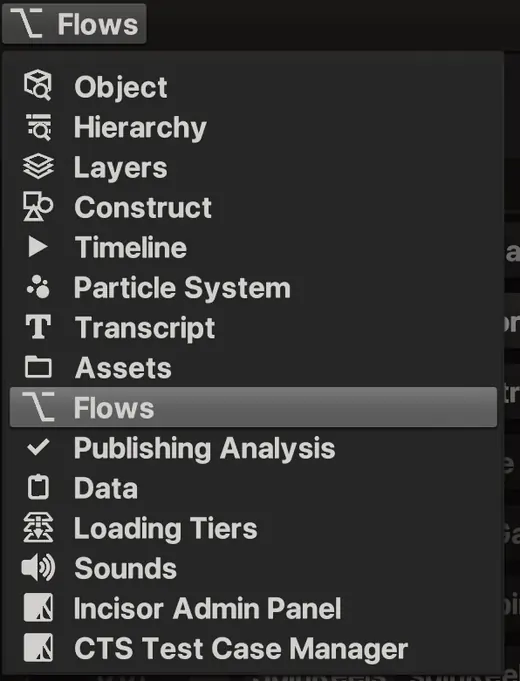
Open any panel's Panel Type menu and choose Flows. Every FlowController is listed with all its elements, in time order.
- NameController rowThe controller's name, its current state and that state's clock.
- →PointerShows where the current state's clock is. Rows in other states are dimmed.
- FiredTicks when an element runs, then fades.
- PauseMarks a pause element.
- ☑isActive / auto-scrollFreeze the controller, or keep the pointer in view.
Where is it stuck?
When a sequence stalls, the pointer shows you where. Here the game is sitting on the intro's pause, waiting for a touch:
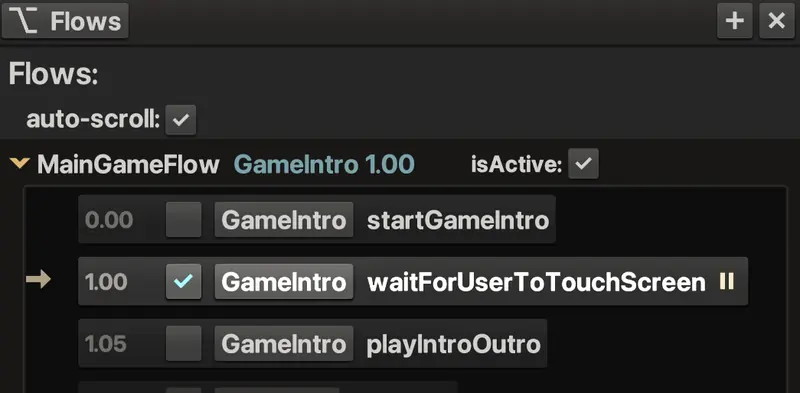
waitForUserToTouchScreen while the game shows "Press to continue".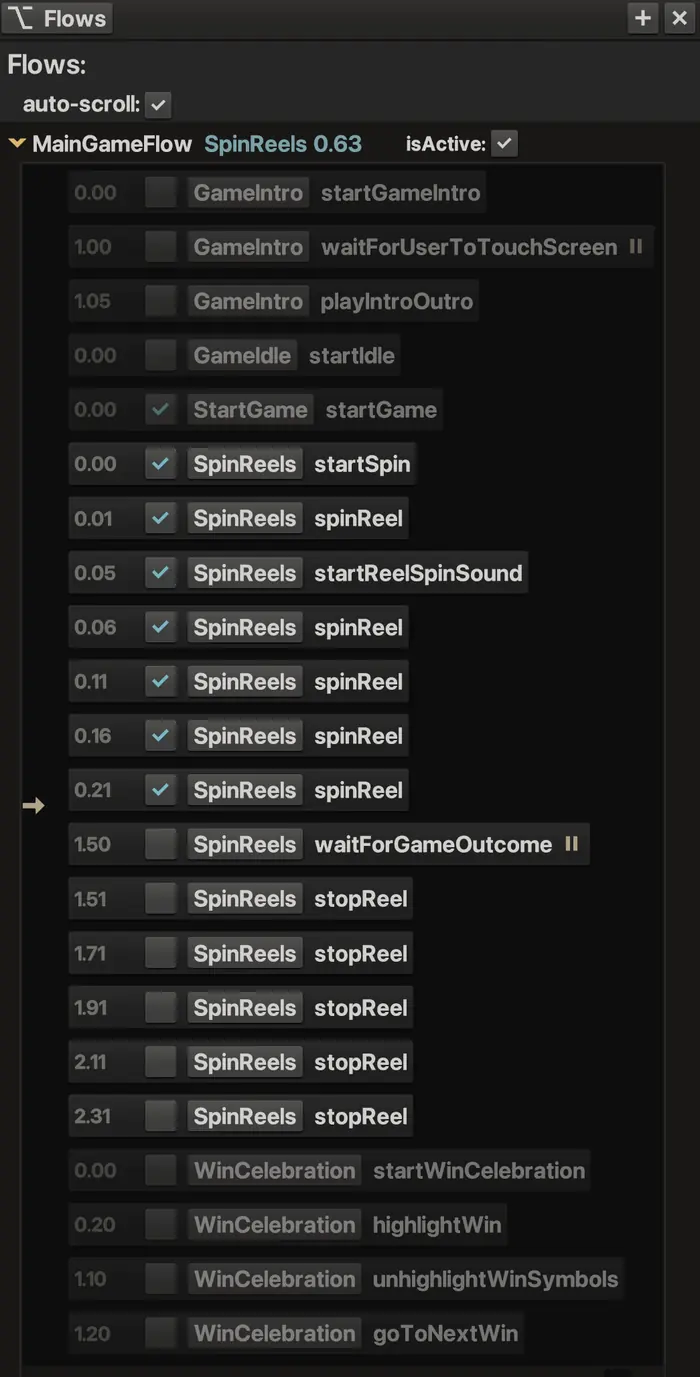
Mid-spin, the reel starts have ticked and the pointer is moving toward waitForGameOutcome. If the server never replies, this is where it stops, and you'll see it right away.
More control
React to player input by state
In the Slot Template, one spin button has three meanings. currentFlowState tells you which one applies:
const flow = nc.flows.MainGameFlow;
switch (flow.currentFlowState.name) {
    case "GameIdle":       flow.StartGame.setToCurrentState(true); break;   // spin
    case "SpinReels":      this.slamReels(); break;   // stop early
    case "WinCelebration": flow.StartGame.setToCurrentState(true); break;   // skip ahead
}
Loop inside a state
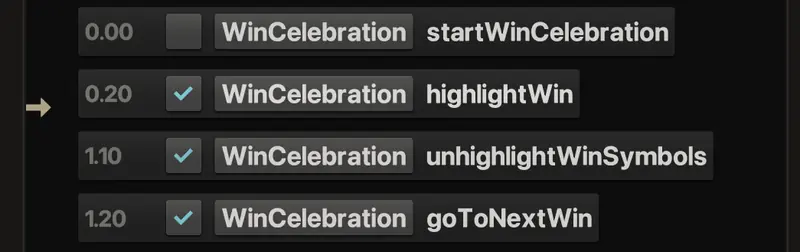
In the Slot Template, WinCelebration cycles through the winning lines by jumping its own clock back:
this.addElement(0,   "startWinCelebration");
this.addElement(.2,  "highlightWin");
this.addElement(1.1, "unhighlightWinSymbols");
this.addElement(1.2, "goToNextWin");

goToNextWin() {
    this.setTime(.1, true);   // back to just before highlightWin, for the next line
}
About performFollowupEvaluation
setToCurrentState() and setTime() both take an optional true. Include true to evaluate the new state's elements immediately, so anything due at the new time runs right away. Otherwise, the evaluation happens on the next fixed update.
Handy extras
On a FlowController (nc.flows.MainGameFlow):
| Use | To |
|---|---|
addFlowStateChangeCallback(owner, name) | Hear about every state change. You get the new state and the previous one. Great for analytics and logging. |
playbackRate | Run the controller's clock faster or slower. 2 is double speed, which makes testing quicker. |
pauseImmunity / speedControl | Set how the flow responds to PauseEvents and SpeedControls. You can also pass them to nc.defineFlowController. |
isActive | Stop the controller's clock entirely. It's also a checkbox in the Flows panel. |
On a FlowState (nc.flows.MainGameFlow.SpinReels, or this inside the state):
| Use | To |
|---|---|
getElements() | List the state's elements in time order. You can change an element's time to reorder the sequence. |
owner | Get the FlowController the state belongs to. |
When to use them
Intro, menu, play, results
The classic use. One controller, one state per phase, and the whole structure is visible at a glance.
Bet → spin → reveal
Anything that repeats in a fixed rhythm: slot spins, card deals, turns, waves.
Server and player
Pauses turn "wait for the reply" or "wait for a tap" into one line, with the timing kept on either side.
Celebrations and tutorials
Step-by-step presentation, such as big-win reveals, onboarding or attract loops, where timing matters and players may skip ahead.
Tips
- Keep states focused. One phase each. If a state keeps growing, it's probably actually multiple states.
- Use a pause, not a timer, for anything asynchronous. Then the Flows panel shows exactly what you're waiting on.
- Reset in the time-0 element. The clock restarts on every entry, but your own flags (like
userTouchedScreen) don't. Clear them in the first element. - Leave simple animation to Timelines. A flow decides what happens next. A Construct Timeline is better for animating it.
- Keep the module in.
flowControllersis an optional code module, so don't exclude it in Project Settings if you use flows.
Cheat sheet
| API | Does |
|---|---|
nc.defineFlowController(name) | Creates a controller, reached at nc.flows[name]. |
controller.addFlowState(StateClass) | Adds a state. Its class name becomes its name. |
controller.currentFlowState | The state that's running now. |
state.setToCurrentState(true) | Makes this state current, and its clock restarts at 0. Include true for an immediate evaluation, otherwise it happens on the next fixed update. |
state.addElement(time, method, args, offsets) | Calls method at time, plus any variable offsets. |
state.addPause(time, method, args, offsets) | Holds the clock at time until method returns true. |
state.time / state.setTime(t, true) | Reads or jumps the state's clock. |
For full signatures, see the documentation (search FlowController). To see it all running, open the Incisor® Slot Template and look in ProjectCode/FlowStates/.